
 Catppuccin for daisyUI



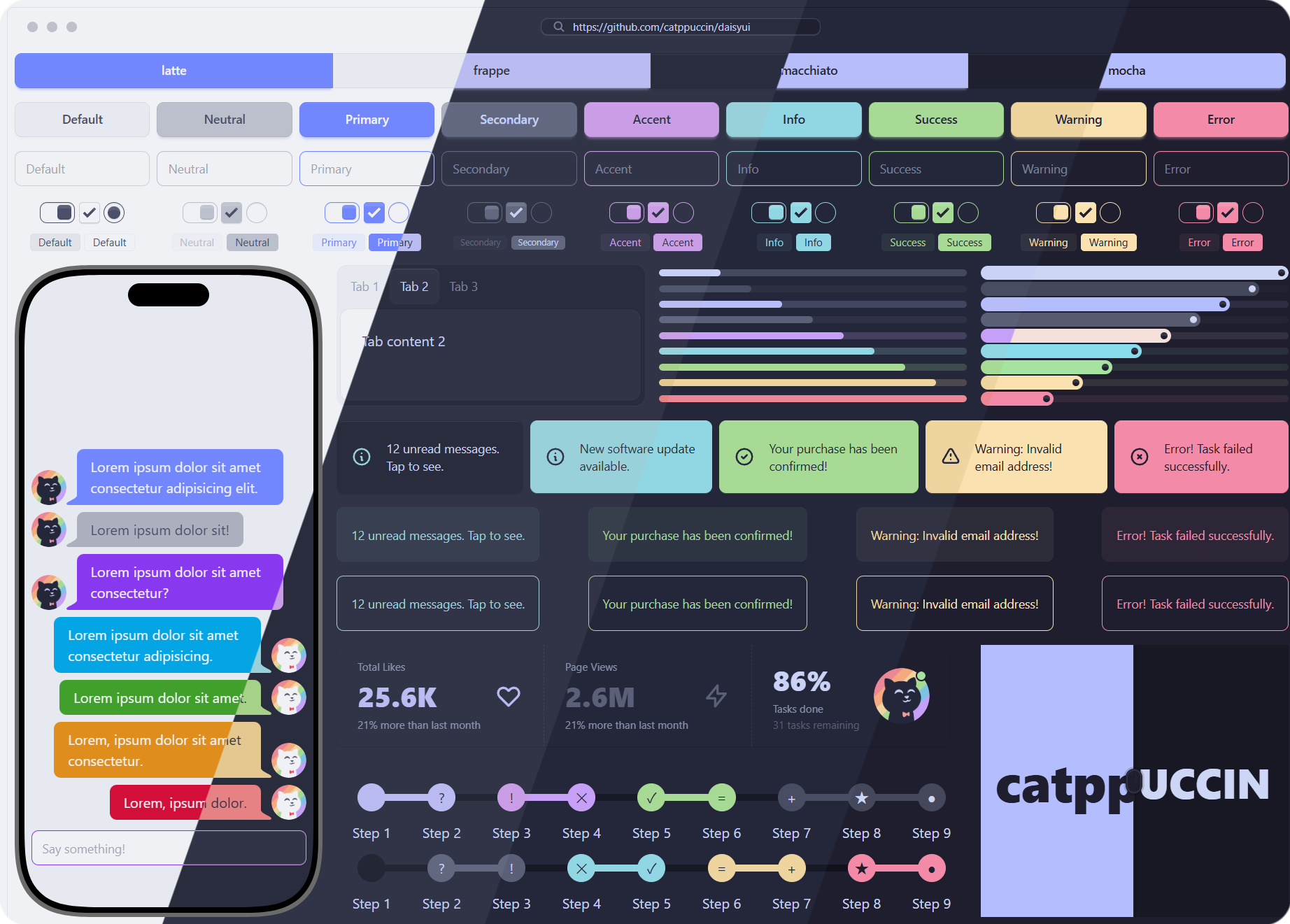
🌻 Latte

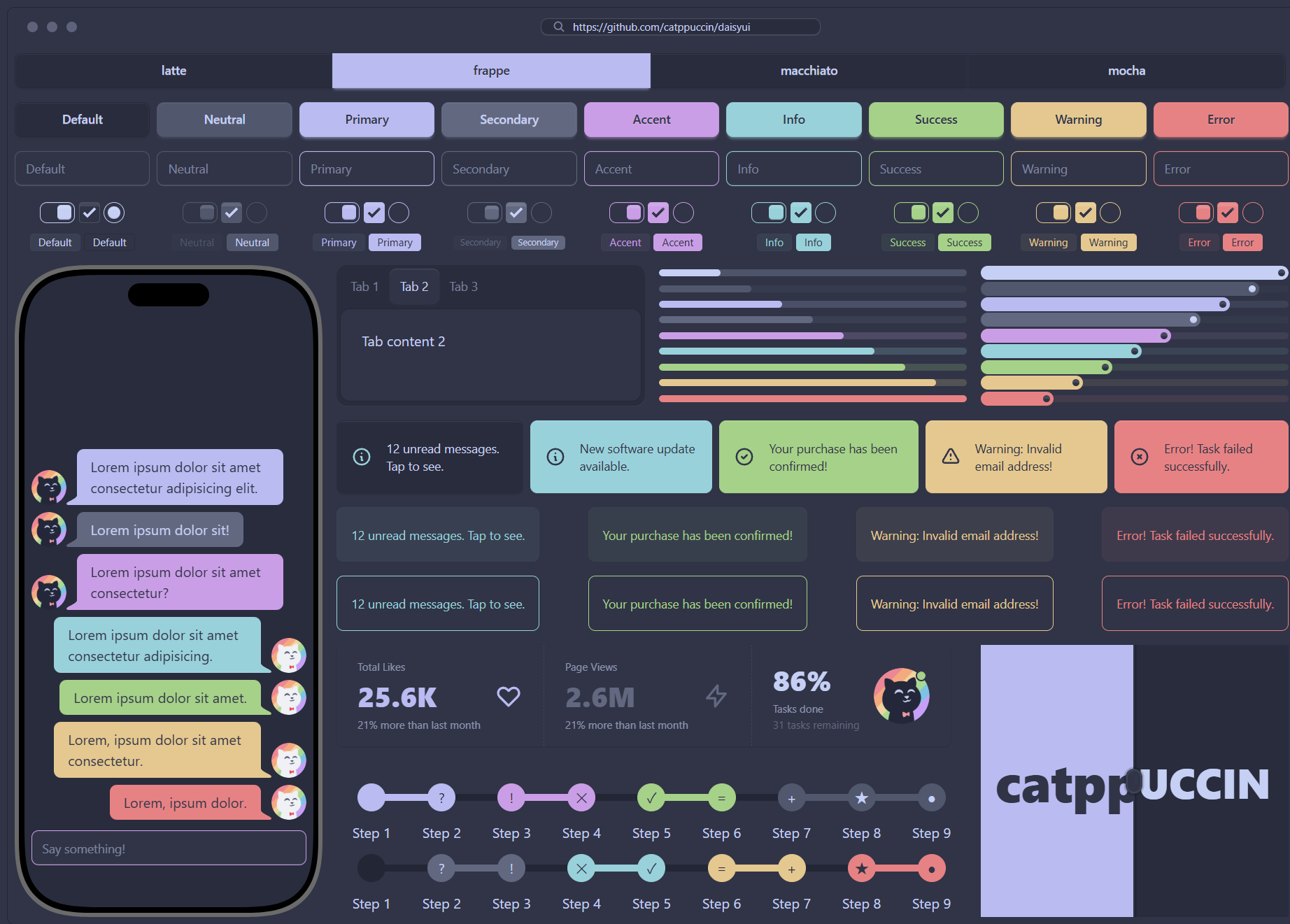
🪴 Frappé
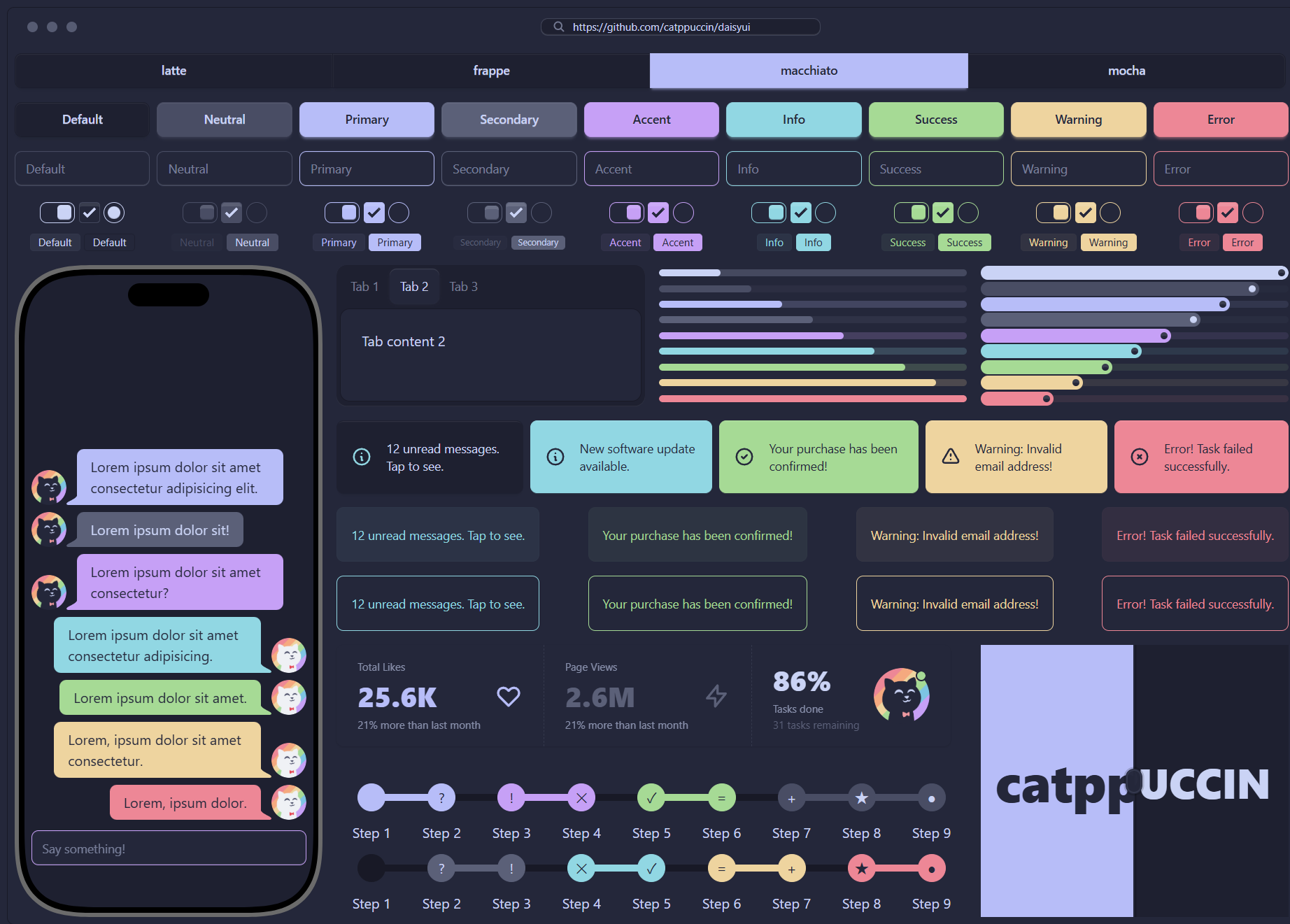
🌺 Macchiato
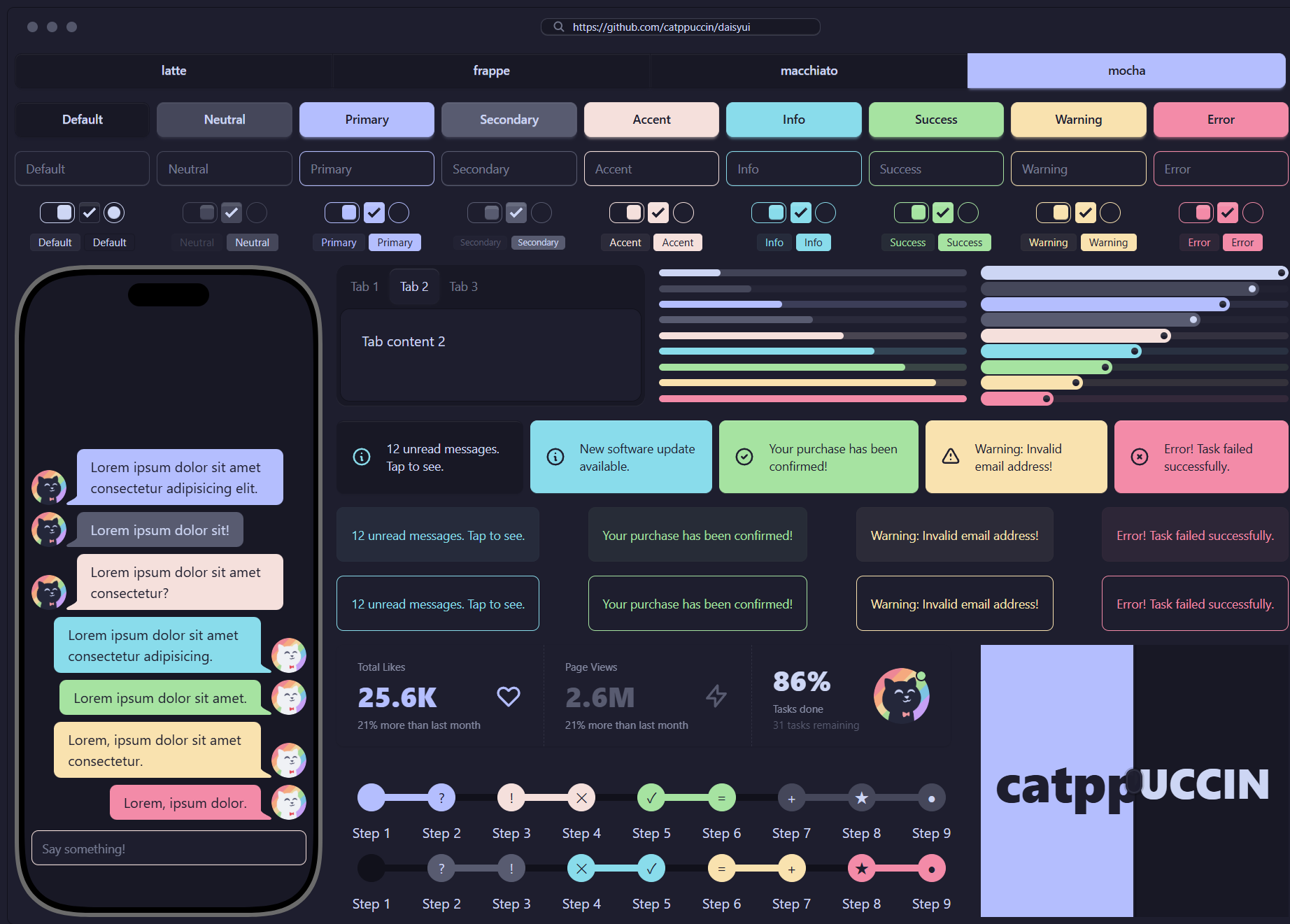
🌿 Mocha
| npm | pnpm | yarn |
|---|---|---|
| npm install -D @catppuccin/daisyui | pnpm add -D @catppuccin/daisyui | yarn add -D @catppuccin/daisyui |
-
Follow the installation instructions for Tailwind CSS and daisyUI
-
Add the plugin to your Tailwind CSS file:
@import 'tailwindcss';
@plugin 'daisyui';

@plugin '@catppuccin/daisyui/themes';
Done!
latteis now your default color scheme, and every flavor is registered with daisyUI. For more control, configure the plugin as follows:@plugin '@catppuccin/daisyui/themes' { /* the default flavor */ default: latte; /* accent color applied to every flavor; pick a name from https://github.com/catppuccin/palette/blob/07d02aa110ef9eb7e7427afca5c73ba9cf7f8ebd/mod.ts#L18-L32 */ accent: mauve; /* flavors to skip */ disable: frappe, mocha; }
For finer-grained control, you can use the JavaScript plugin, which requires creating a separate file and importing it as a plugin.
-
Create a separate file such as
catppuccinTheme.latte.tsand import@catppuccin/daisyuiimport { createCatppuccinPlugin } from '@catppuccin/daisyui' export default createCatppuccinPlugin('latte')
Your editor's type hints list the available values. See the example and source code for details.
-
Import the files you created in your CSS configuration:
@import 'tailwindcss';
@plugin 'daisyui';

@plugin "./catppuccinTheme.latte.ts";
@plugin "./catppuccinTheme.frappe.ts";
@plugin "./catppuccinTheme.macchiato.ts";
@plugin "./catppuccinTheme.mocha.ts";
You can also mix both approaches:
@import 'tailwindcss';
@plugin 'daisyui' {
  themes: false;
}

@plugin '@catppuccin/daisyui/themes' {
  default: latte;
  accent: mauve;
  disable: frappe, mocha;
}

@plugin "./catppuccinTheme.frappe.ts";
@plugin "./catppuccinTheme.mocha.ts";
Tip
For daisyUI v4, import the required functions from @catppuccin/daisyui/legacy. See the previous guide for usage details.
Inspired by daisyUI's CDN usage, each theme ships as a separate file, so you can import a single flavor or combine the ones you need:
<!-- some? -->
<link href="https://cdn.jsdelivr.net/npm/@catppuccin/daisyui@2/latte.css" rel="stylesheet" type="text/css" />
<link
  href="https://cdn.jsdelivr.net/combine/npm/@catppuccin/daisyui@2/latte.css,npm/@catppuccin/daisyui@2/frappe.css"
  rel="stylesheet"
  type="text/css"
/>
<link
  href="https://cdn.jsdelivr.net/combine/npm/@catppuccin/daisyui@2/latte.css,npm/@catppuccin/daisyui@2/macchiato.css"
  rel="stylesheet"
  type="text/css"
/>
<link
  href="https://cdn.jsdelivr.net/combine/npm/@catppuccin/daisyui@2/latte.css,npm/@catppuccin/daisyui@2/mocha.css"
  rel="stylesheet"
  type="text/css"
/>
<!-- every! -->
<link href="https://cdn.jsdelivr.net/npm/@catppuccin/daisyui@2/themes.css" rel="stylesheet" type="text/css" />Use the following HTML to try the theme:
<div class="grid grid-cols-2 gap-2 md:grid-cols-4 lg:grid-cols-9">
  <button class="btn">Default</button>
  <button class="btn btn-neutral">Neutral</button>
  <button class="btn btn-primary">Primary</button>
  <button class="btn btn-secondary">Secondary</button>
  <button class="btn btn-accent">Accent</button>
  <button class="btn btn-info">Info</button>
  <button class="btn btn-success">Success</button>
  <button class="btn btn-warning">Warning</button>
  <button class="btn btn-error">Error</button>
</div>
A full example lives in the example folder.
- Add
default: trueto the final options argument ofcreateCatppuccinPlugin:
export default createCatppuccinPlugin('latte', {}, {
  default: true
})- Alternatively, add an active theme controller, for example one matched by the selector
input.toggle.theme-controller[type="checkbox"]:checked. - Alternatively, set
data-theme="latte"on the root HTML element to configure it globally, or let a client-side framework manage the attribute.
No, but when using the JavaScript plugin you should still set the default theme through the createCatppuccinPlugin options; the CSS plugin handles this for you.

Copyright © 2021-present Catppuccin Org